How to Move a Mailbox From One Store to Another
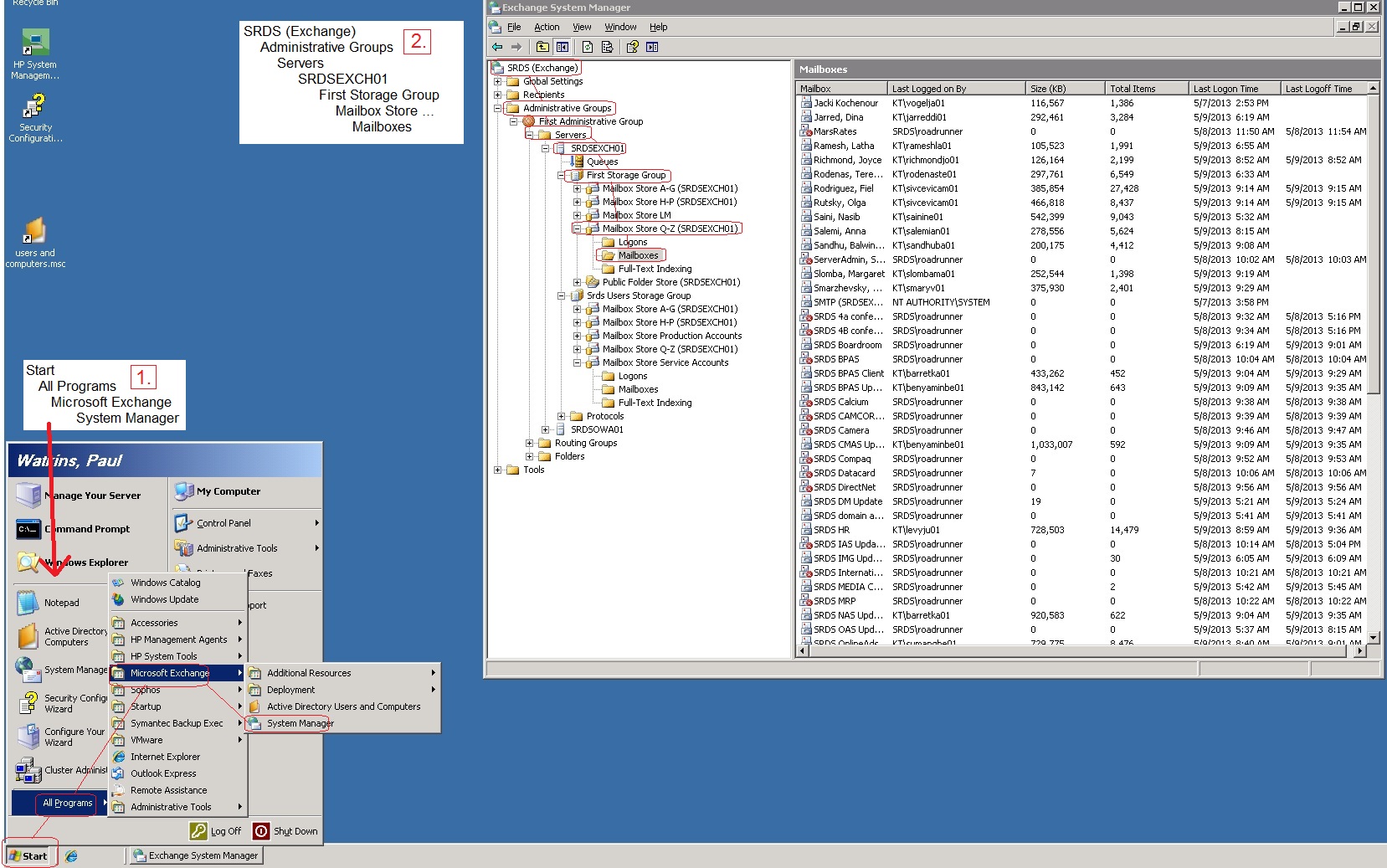
1.) - Remote in to the Exchange server.
2.) - Open the Exchange "System Manager" application. (see first screenshot below)
3.) - Under "SRDS(Exchange)", expand "Administrative Groups" > "Servers" > "SRDSEXCH01" > "First Storage Group" > "Mailbox Store ..." > "Mailbox".
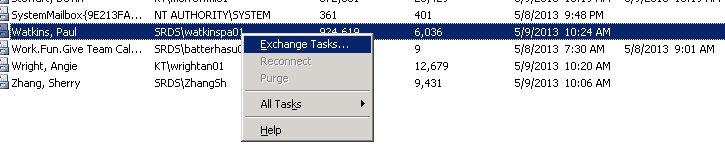
4.) - Right-click on the particular mailbox you want to move and choose "Exchange Tasks ..." from the drop-down list.
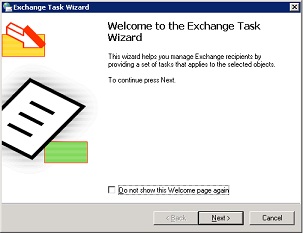
5.) - Click the "Next" button in the "Exchange Task Wizard".
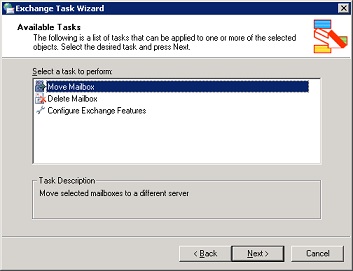
6.) - Make sure "Move Mailbox" is highlighted and then click on "Next".
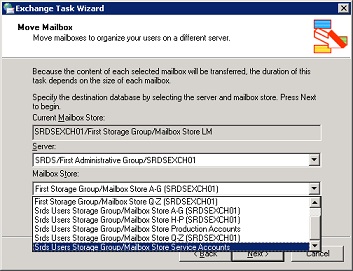
7.) - Hit the drop-down button next to "Mailbox Store" (the bottom box of the three), choose the store you want to move the mailbox to, and then click on the "Next" button.
8.) - Now wait until it gets moved over and until the old mailbox disappears. If the old mailbox does not go away, you may need to follow these instructions.