Resolving a Locked File
(PDW 04/05/13)
Sometimes a person will get a message like the one below when trying to open a file on a network drive.
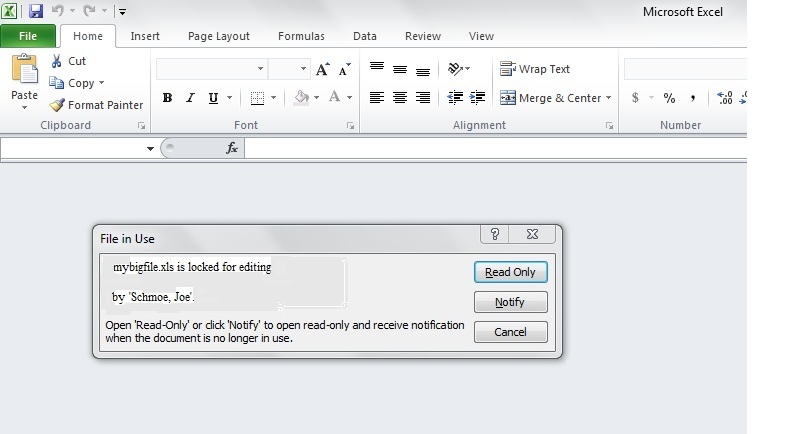
So here are the steps to resolve this problem:
Remote in to the server that the file is on.
Open up Server Manager if it doesn't open automatically.
In the left-hand window, open up "Roles", then "File Services", and finally "Share and Storage Management".
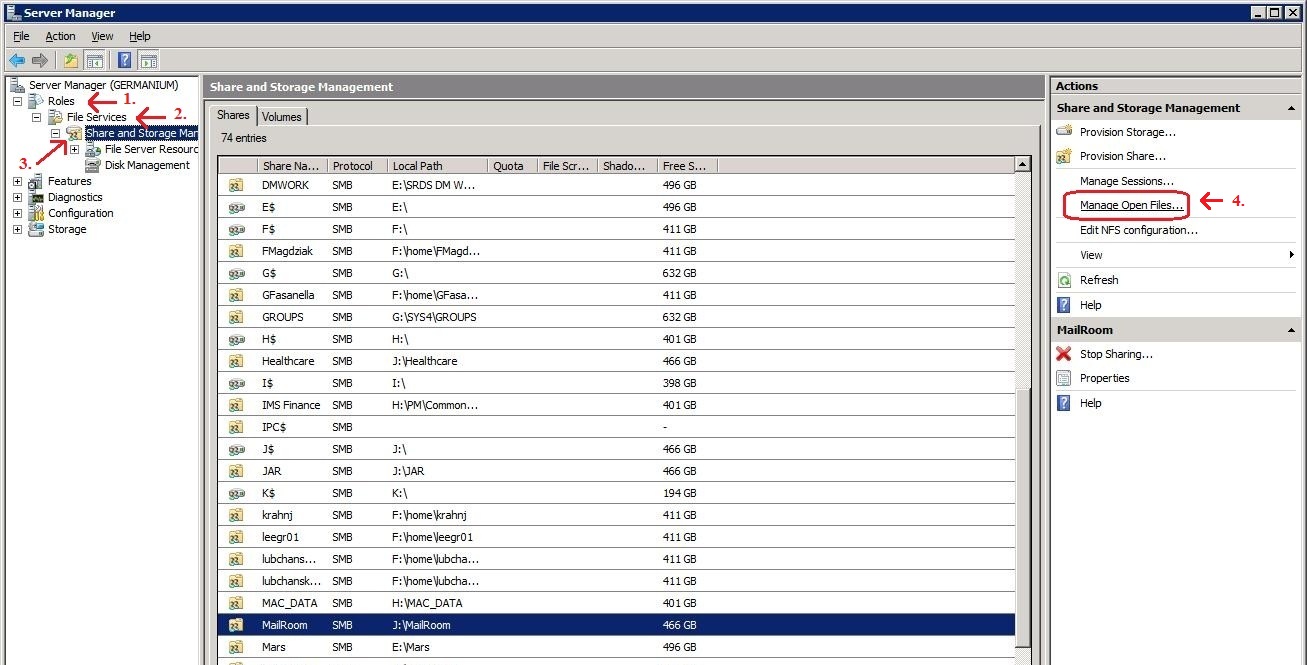
Now in the far right window, click on the "Manage Open Files ..." link.
Find the file from the list and highlight it. Then click on the "Close Selected" button.
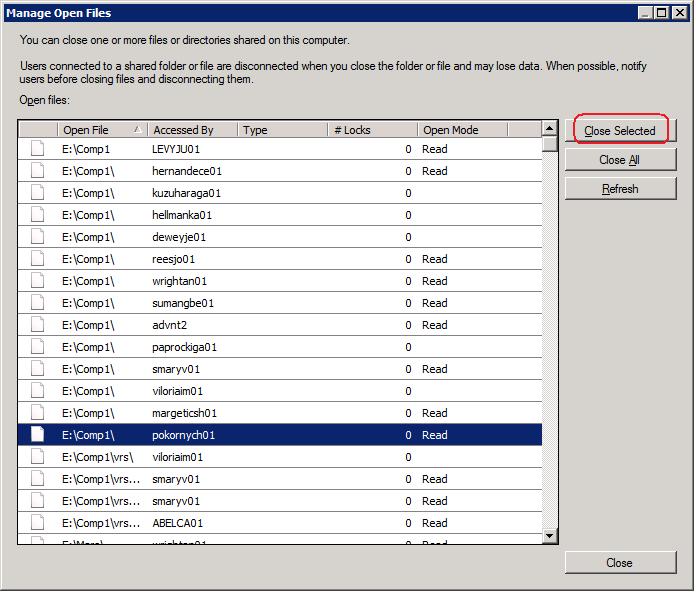
The file should now be unlocked and ready for use again.