Administering Citrix Servers/Accounts
(P.W. - 02-28-13)
1. RDP to the citrix server of your choice
2. Run the C:\Program Files (x86)\Citrix\Citrix Delivery Services Console\Framework\CmiLaunch.exe utility.
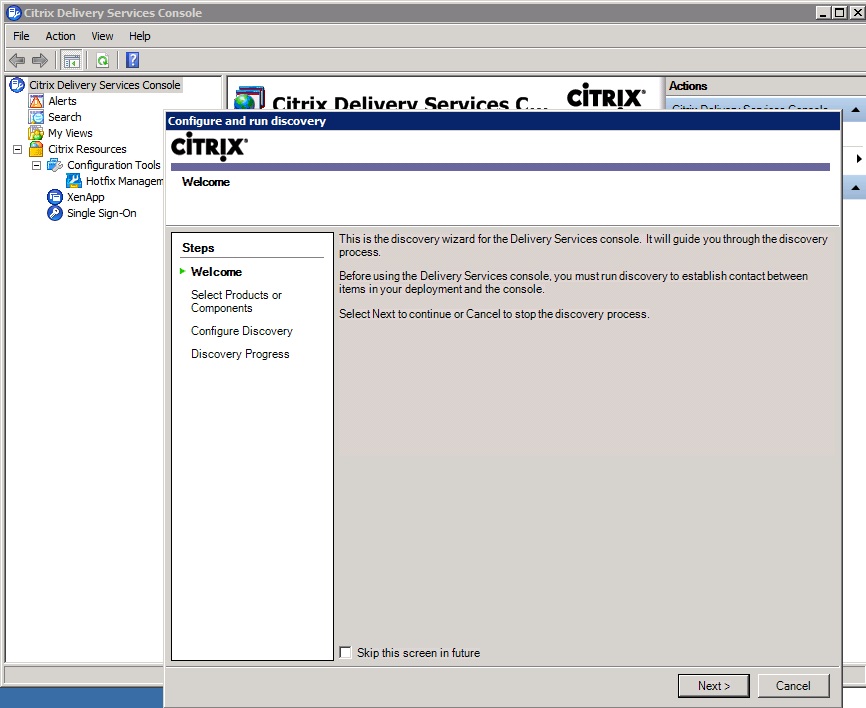
NOTE: (you might not need to do steps 3-7.)
3. Click "Next" in the "Configure and run discovery" window.
4. Click "Next" again.
5. Click the "Add Local Computer" button.
6. Highlight your server name and click "Next".
7. Click "Cancel".
8. Right-click on the "XenApp" item in the left window.
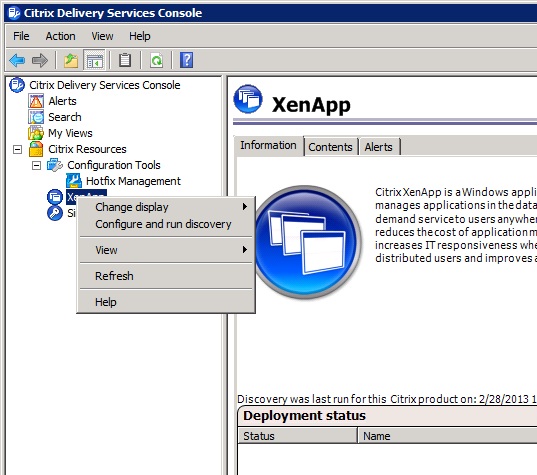
9. Click on "Configure and run discovery".
10. Click on "Next".
11. Click "Next" again.
12. When the discovery finishes, click on "Finish".
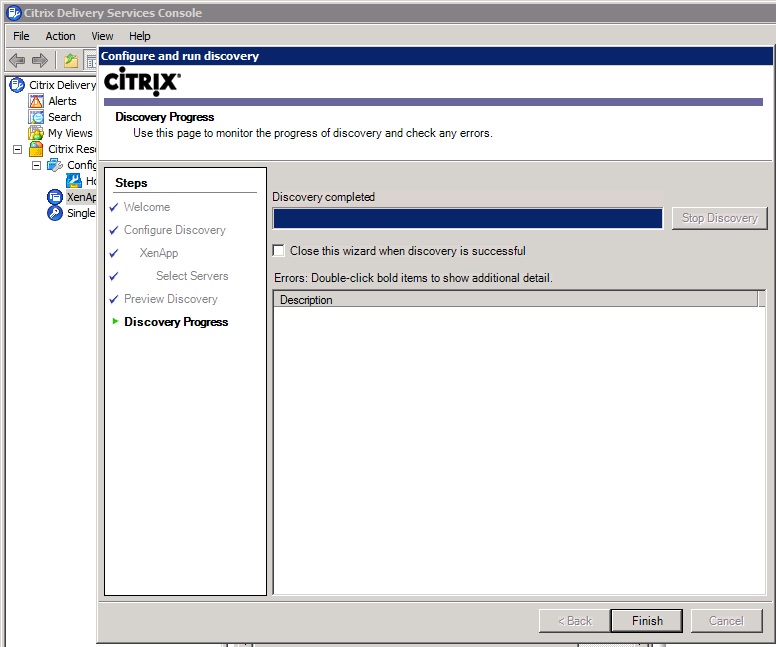
13. Double-click on KTDESAPPCTX and then on Servers.
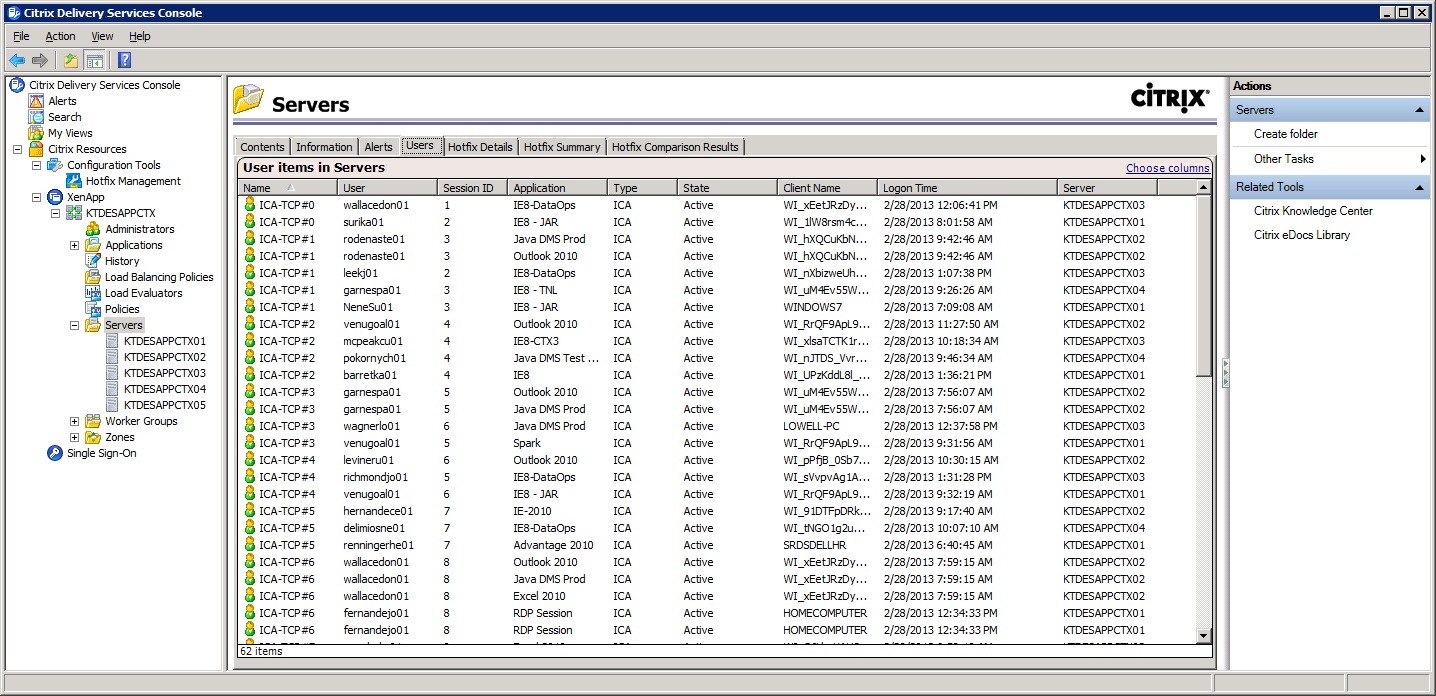
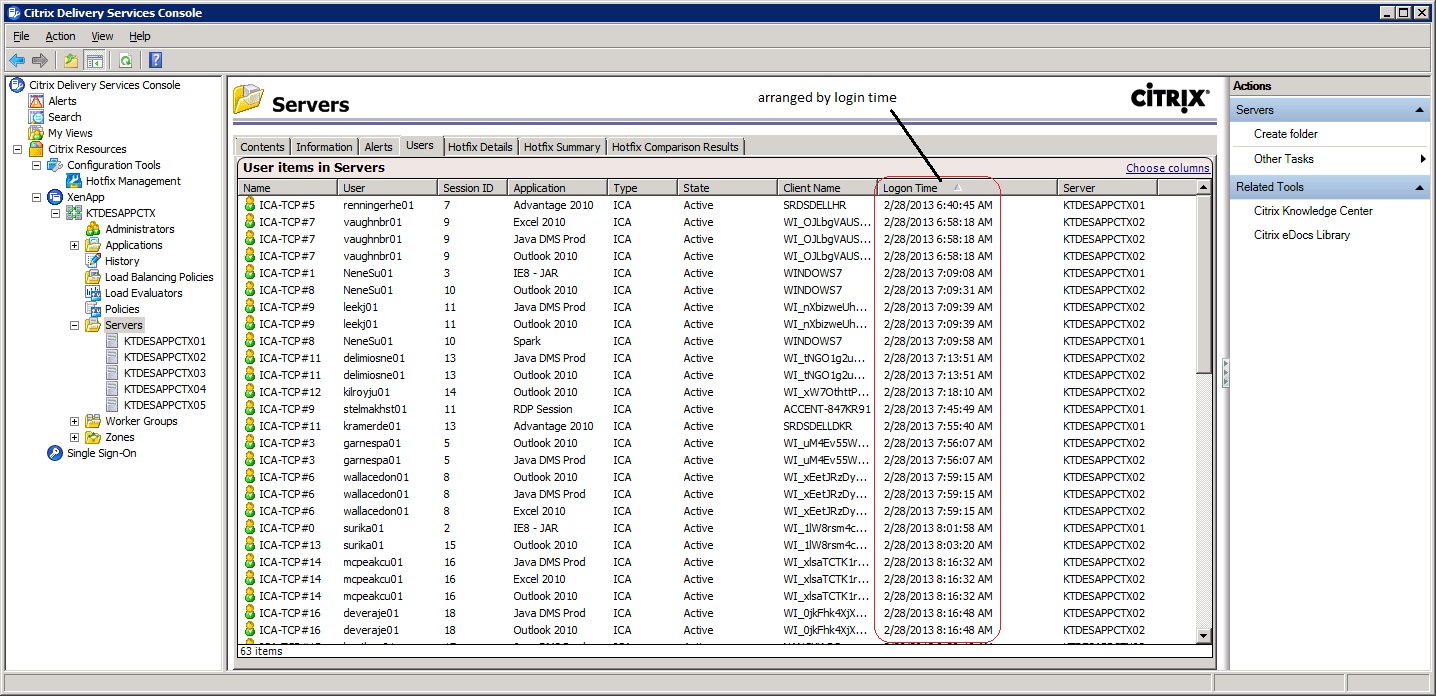
14. Now you can see info from all the server together in the middle window if you have "Servers" highlighted.
Or you can highlight any one of the servers to see info specific to that one. You have a number of tabs to
choose from (Contents, Information, Alerts, Users, etc) and under each of those tabs you have columns of
information and sub-tabs that you can use to arrange the information which ever way you want.
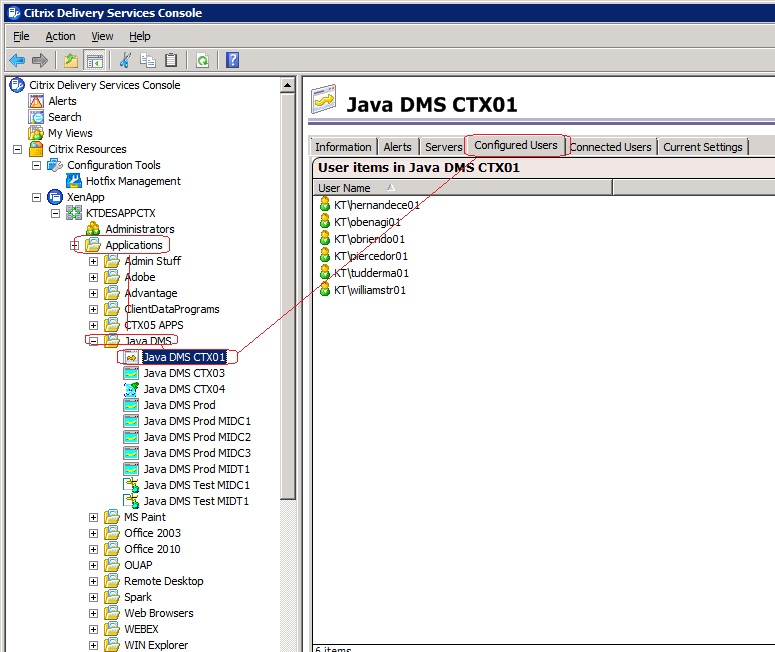
15. Click on the "Applications" folder, then the application folder of your choice, then the "Configured Users"
tab to see what users have access to that application.
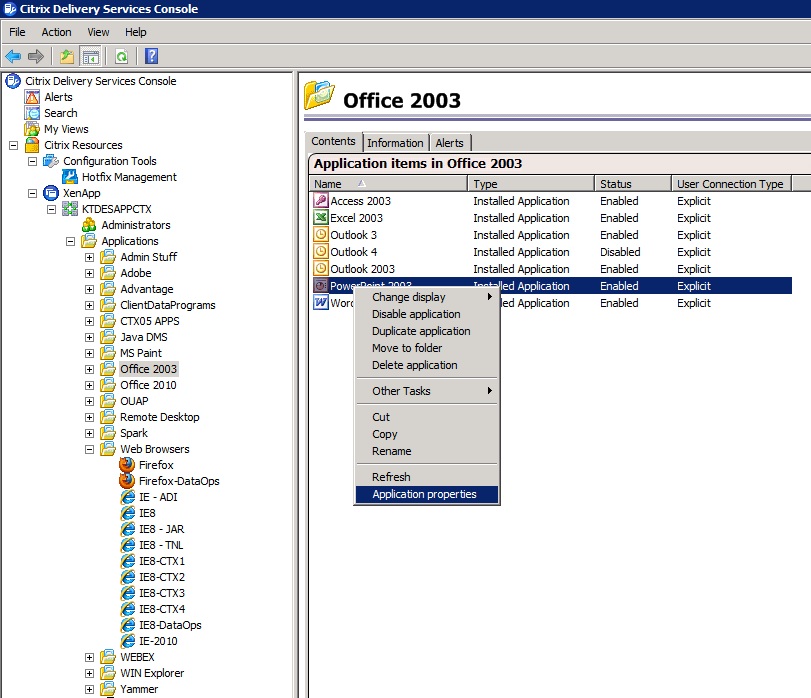
16. To add an application to a Citrix user's desktop, right-click on the particular application and choose
"Application Properties".
17. Choose "Users" and then the "Add" button.
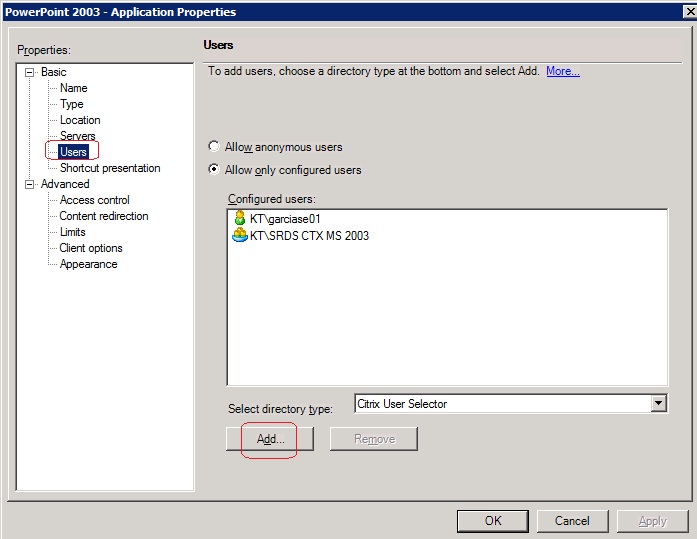
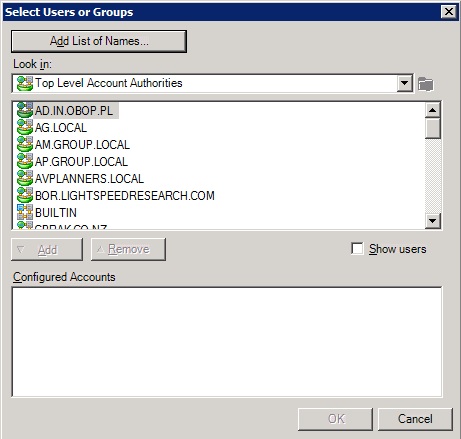
18.Click on the "Add List of Names" button.
19. In the "Add List of Names" box, type the domain\username. (e.g. kt\pylego01)
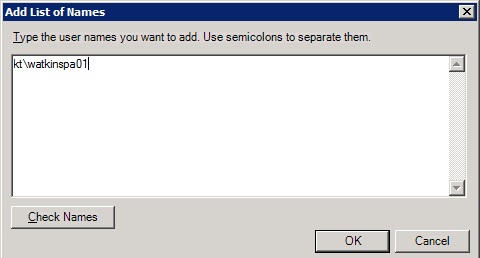
20. Click on the "Check Names" button and then OK, and OK again.