Wyse R50L Firmware Upgrade Howto
(10/08/12)
1. Download the latest firmware update from here: https://appservices.wyse.com/pages/serviceandsupport/support/downloads.asp
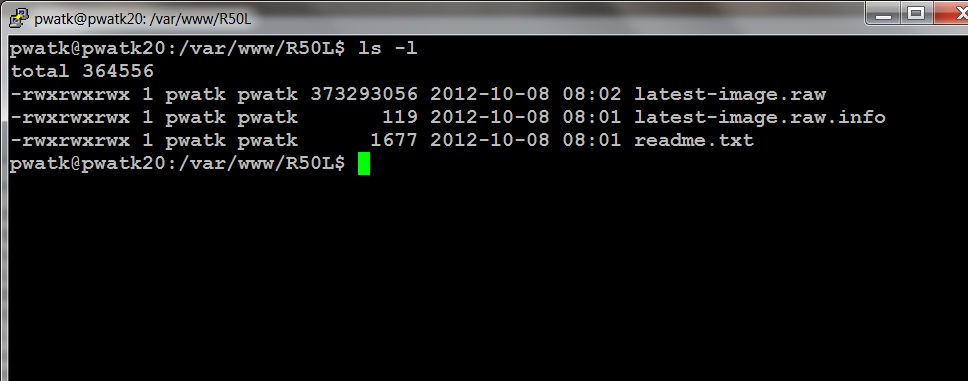
2. Extract as necessary and copy the extracted files to the ftp or http server location of your choice. (I copied the current ones to the /var/www/R50L folder on my Pwatk20 server.) Be sure they have permissions to be read by all. (e.g. 744)
3. From the R50L thin client that needs updating, click on the "Computer" button, then "Control Center".
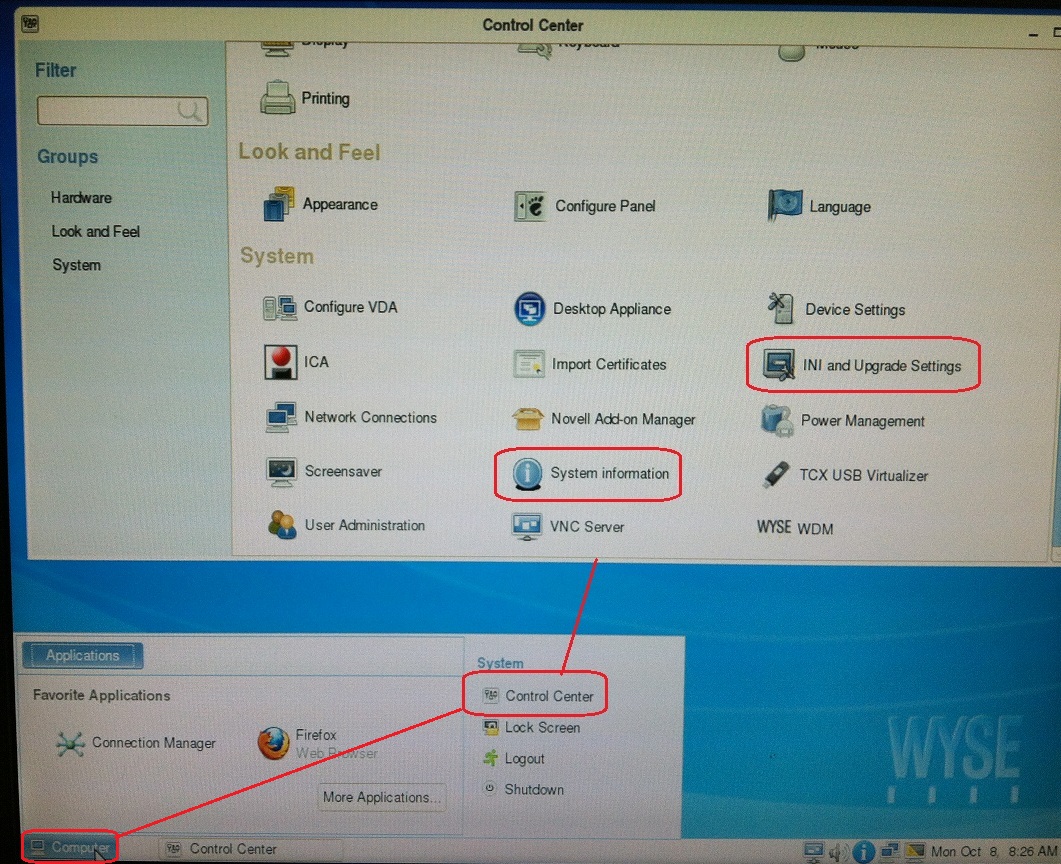
4. In the Control Center click on the "System Information" link and take note of the "Build Number" and "OS Version Number" in particular. (Maybe the BIOS version too?)
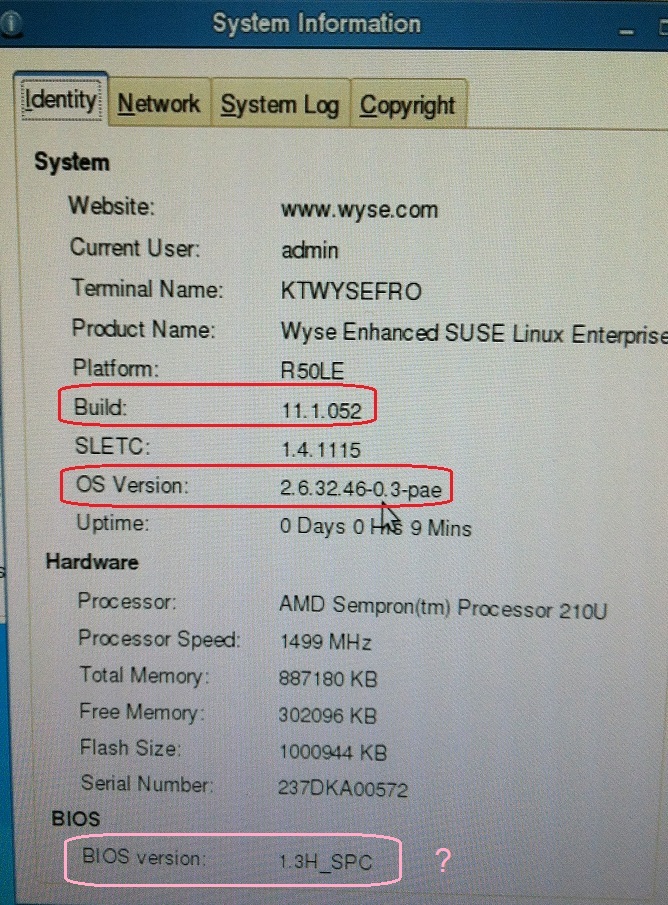
Note: The build and OS versions in the screenshot above are the most current as of 10/01/12
5. Now from the Control Center click on the "INI and Upgrade Settings" link. Then click on the "Image Upgrade Settings" button.
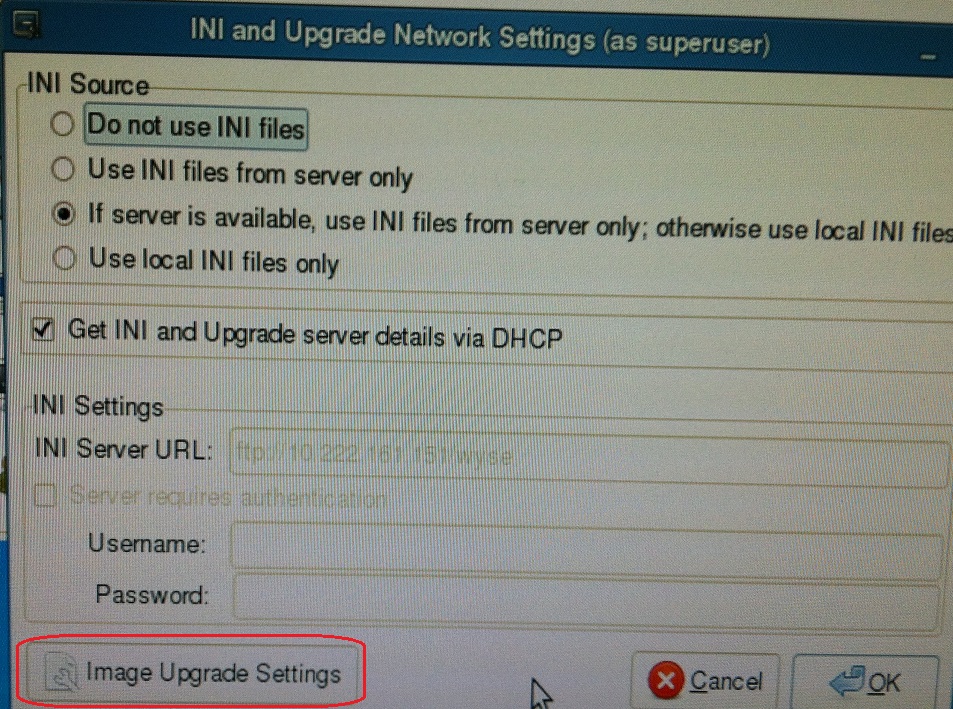
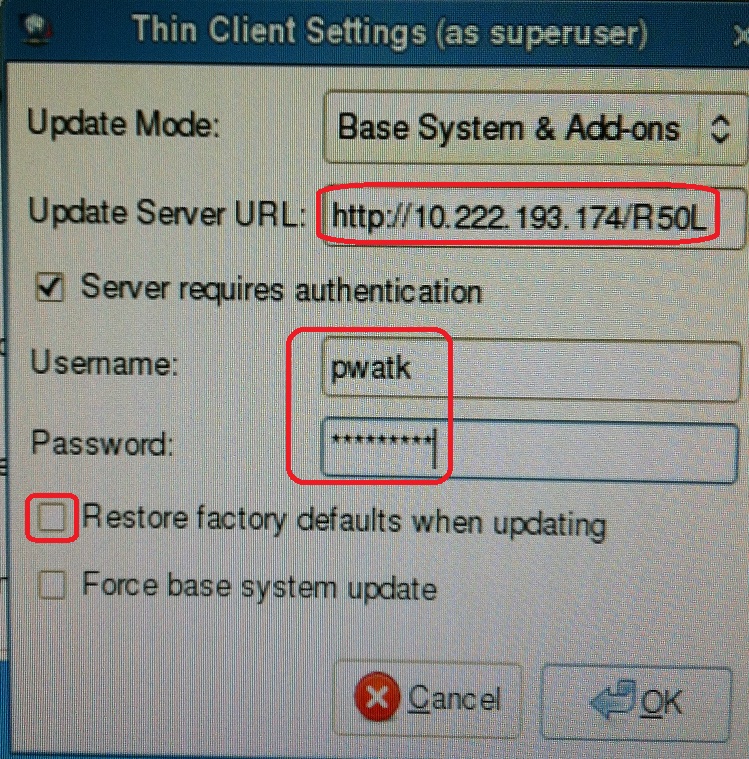
6. Edit the "Update Server URL:" box with the correct server and location (You may have to use the server's IP.) Check the "Server requires authentication" box, and enter your ID and password. You might also want to uncheck the "Restore factory defaults ..." box.
7. Close everything and reboot the thin client. If everything goes as planned you should see the upgrade taking place similar to the picture below. When the thin client reboots itself, go back into "System Information" from the Control Center and check for updated version numbers to verify the updates.
